Set up CMEK with Google Cloud KMS
Create a Google Cloud KMS key, give Anthropic access to it, and put it to use in Claude Platform or Claude Enterprise.
Claude Code
Let Claude Code set up this feature for you
/claude-api help me configure a customer-managed encryption key with Google Cloud KMSBefore you start
In Claude:
- Customer-managed encryption keys (CMEK) are turned on for your organization.
- You have your Anthropic organization ID, the UUID without the
org_prefix. Copy it from Organization in the Claude Console, or from Organization settings > Organization and access on claude.ai. Whoever creates the key needs it. - You’re an Organization Admin on Claude Platform, or an Owner or Primary Owner on Claude Enterprise.
- On Claude Platform, you have a workspace that retains data, ideally a new one, because existing data stays under Anthropic’s key.
- On Claude Enterprise, you know which features turn off or change.
In Google Cloud:
- The Cloud KMS API is turned on.
- You can create key rings and keys, and set IAM policy on them (
roles/cloudkms.adminor equivalent). - Cloud KMS Data Access audit logs (Data Read and Data Write) are on, so Cloud Logging records Anthropic’s use of your key. They’re off by default.
- If your Google Cloud organization enforces domain restricted sharing (
constraints/iam.allowedPolicyMemberDomains), it blocks the grant to Anthropic’s service account. Add a project-level exception, or allow Anthropic’s Cloud Identity customer ID. Contact Anthropic for the ID.
In Google Cloud: create the key
After a failed Verify or Add, see the fixes for Google Cloud KMS.
These steps label the key with your Anthropic organization ID in lowercase (<ORGANIZATION_UUID>) and grant access to Anthropic’s service account:
anthropic-cmek-client-us@gcp-anthropic-cmek-clients.iam.gserviceaccount.comUse only this address, never one sent by email or chat.
You can use any Cloud KMS location. For the lowest latency, use us-east5 or us-central1. Anthropic strongly recommends HSM protection.
To use a key you already have, add the organization label first.
Create or choose a key ring
In the Google Cloud console, go to the Key management page. Open a key ring, or create one in a location such as
us-east5.Configure the key
Click Create key and enter a name. Select these options:
- Protection level: HSM
- Key material: Generated key
- Purpose: Symmetric encrypt/decrypt
- Algorithm: Google symmetric key
Add the organization label
Click Additional settings, then Add label. Enter the organization label:
- Key 1:
anthropic-org-<ORGANIZATION_UUID> - Value 1:
true
Click Create.
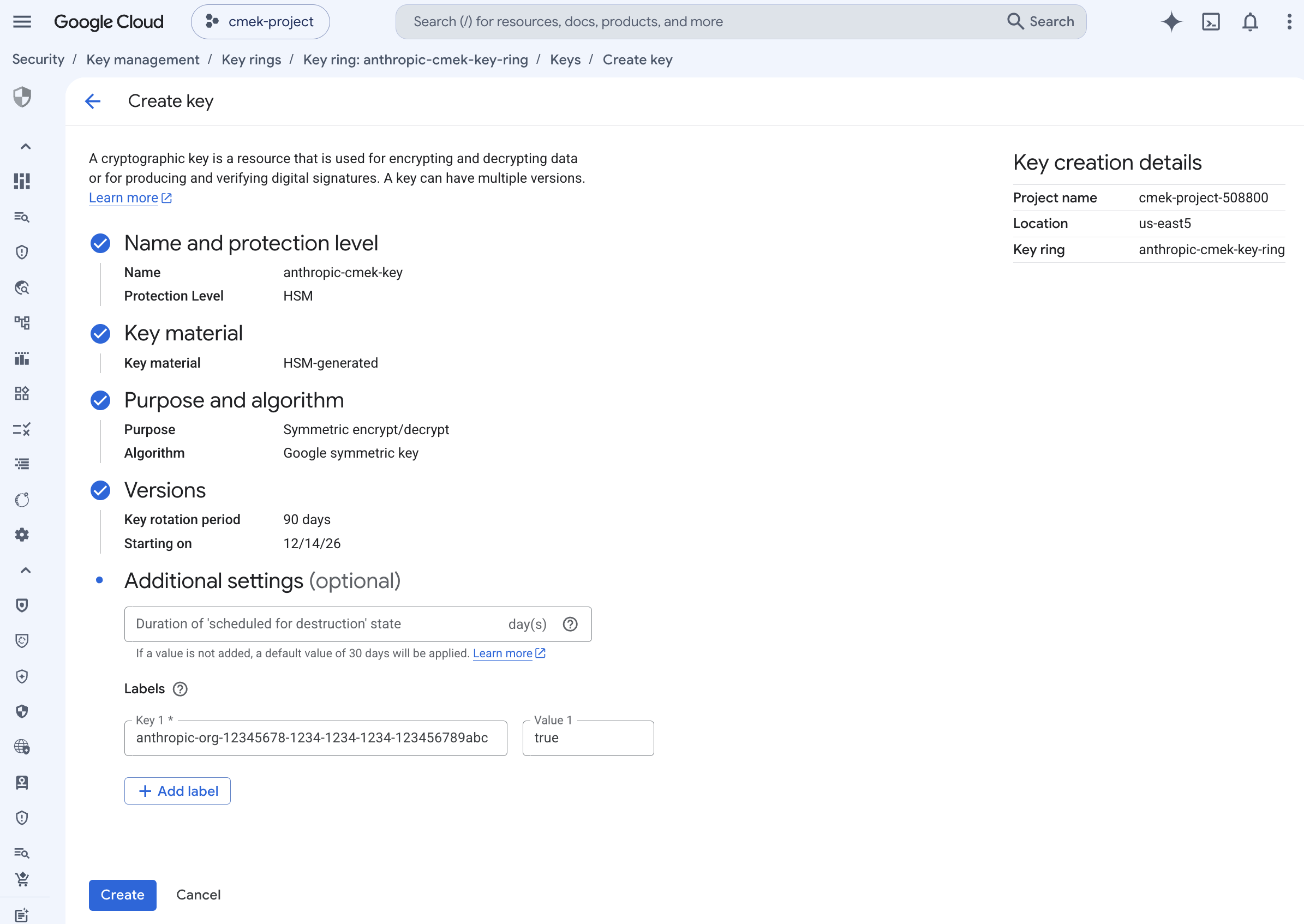
An HSM-protected symmetric encrypt/decrypt key with the organization label. - Key 1:
Open the key’s permissions
On the key ring details page, select the checkbox next to the key. Open the Permissions panel and click Grant access.
Grant Anthropic’s service account access to the key
Check that Resource shows the key, not the key ring or project. Enter these values:
- New principals:
anthropic-cmek-client-us@gcp-anthropic-cmek-clients.iam.gserviceaccount.com - Role: Cloud KMS CryptoKey Encrypter/Decrypter
Click Add another role and select Cloud KMS Viewer. Click Save.
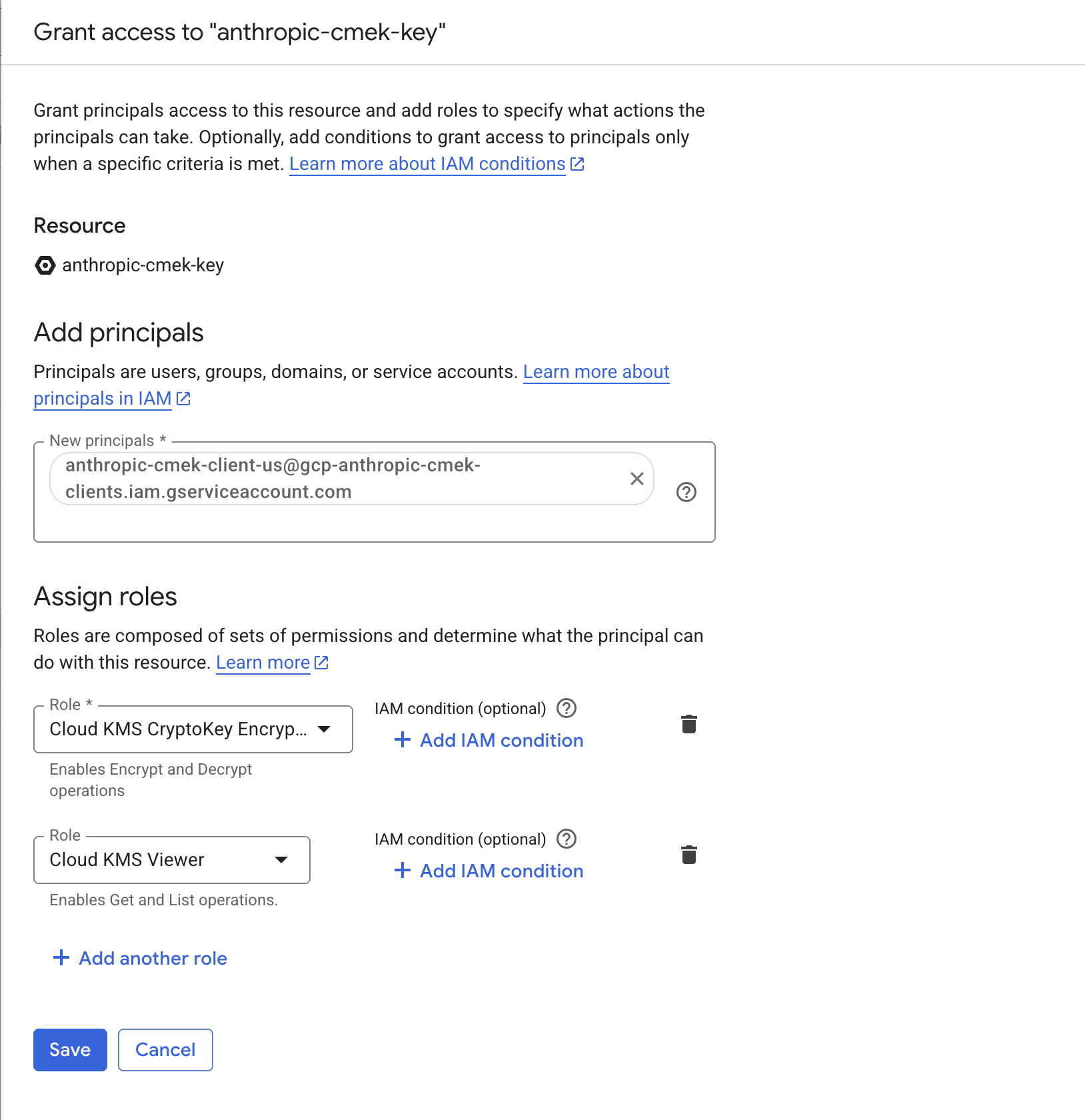
Grant the Anthropic service account both roles, scoped to the key. - New principals:
Copy the full key resource name
On the key ring details page, open the key’s Actions menu and click Copy resource name.
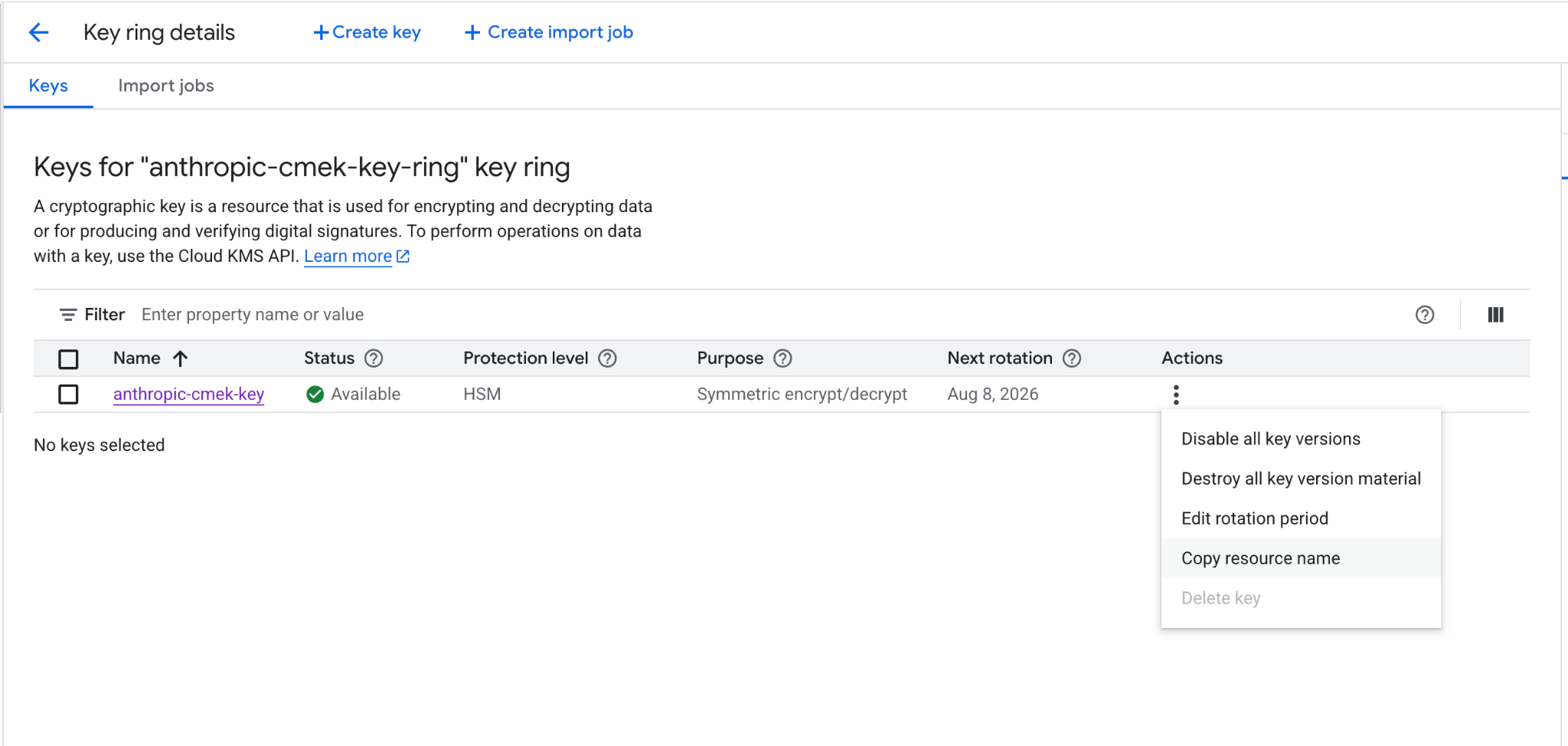
Copy the key's full resource name from the actions menu.
In each command, replace these placeholders:
<your-project-id>: your Google Cloud project ID<region>: the key’s location, such asus-east5<your-keyring-name>: the key ring’s name<your-key-name>: the key’s name<ORGANIZATION_UUID>: your Anthropic organization ID in lowercase
Create or choose a key ring
Skip this step if you already have a key ring to reuse.
gcloud kms keyrings create <your-keyring-name> \ --project=<your-project-id> \ --location=<region>Create the key
gcloud kms keys create <your-key-name> \ --project=<your-project-id> \ --location=<region> \ --keyring=<your-keyring-name> \ --purpose=encryption \ --protection-level=hsm \ --labels=anthropic-org-<ORGANIZATION_UUID>=trueFor software protection, omit
--protection-level=hsm.Grant Anthropic’s service account access to the key
Run both commands:
gcloud kms keys add-iam-policy-binding <your-key-name> \ --project=<your-project-id> \ --location=<region> \ --keyring=<your-keyring-name> \ --member="serviceAccount:anthropic-cmek-client-us@gcp-anthropic-cmek-clients.iam.gserviceaccount.com" \ --role=roles/cloudkms.cryptoKeyEncrypterDecryptergcloud kms keys add-iam-policy-binding <your-key-name> \ --project=<your-project-id> \ --location=<region> \ --keyring=<your-keyring-name> \ --member="serviceAccount:anthropic-cmek-client-us@gcp-anthropic-cmek-clients.iam.gserviceaccount.com" \ --role=roles/cloudkms.viewerGet the full key resource name
gcloud kms keys describe <your-key-name> \
  --project=<your-project-id> \
  --location=<region> \
  --keyring=<your-keyring-name> \
  --format="value(name)"
Whoever adds the key in Claude needs its full resource name, in this format:
projects/<your-project-id>/locations/<region>/keyRings/<your-keyring-name>/cryptoKeys/<your-key-name>Add the organization label to a key you already have
Verification fails unless the key has the label anthropic-org-<ORGANIZATION_UUID> set to true, with your Anthropic organization ID in lowercase. To add the label, run:
gcloud kms keys update <your-key-name> \
  --project=<your-project-id> \
  --location=<region> \
  --keyring=<your-keyring-name> \
--update-labels=anthropic-org-<ORGANIZATION_UUID>=trueThe other values are in the key’s full resource name, and the command keeps existing labels. Then skip to the steps that grant access.
In Claude: add and attach the key
To script this part on Claude Platform, use the Admin API instead.
Open the encryption key settings
In the Claude Console, open Encryption keys on the Data retention page. If the section isn’t there, select Organization from the dropdown menu at the top.
Add the key
Under Encryption keys, click Add key. Enter a Display name, select Google Cloud KMS, and click Continue.
Enter the key resource name
Check that your key has the Organization label shown in the dialog box. Paste the key’s full resource name into Key resource name and click Add.
Verify the key
In the Encryption keys list, click Verify next to the key. Connected appears when the check passes. If Connection failed appears instead, see Troubleshoot CMEK.
Attach the key to a workspace
- At the top of the Data retention page, select the workspace from the dropdown menu.
- Under Encryption key, select the key and click Save.
- Select the checkbox to confirm that you have read the CMEK documentation, then click Confirm.
You see Workspace settings updated. Once the key takes effect, your cloud provider’s audit log shows Anthropic’s calls to the key.
In a ZDR organization, after you select the workspace, select Standard data retention so that Encryption key appears. After you click Save, click Accept on the data retention terms.
On Claude Enterprise, CMEK applies to the whole organization, and you can add only one key.
Adding the key turns off or changes some features for every user. To try CMEK first, use a separate organization.
Open the encryption key settings
Go to claude.ai > Organization settings > Data and privacy and find Encryption keys.
Add the key
Click Add key. Enter a Display name and select Google Cloud KMS. Select the checkbox to confirm that you have read the CMEK documentation, then click Continue.
Enter the key resource name
Check that your key has the Organization label shown in the dialog box. Paste the key’s full resource name into Key resource name and click Add.
Confirm that the key was added
The check can take up to 30 seconds. When Encryption key configured. appears, click Done. If The encryption key couldn’t be added. appears instead, find the cause and retry.
Your key protects data written from then on. Tell your users which features changed.
Was this page helpful?