Send an end customer a link to the Verification Portal
Create an enrollment link for a user profile, see what your end customer does in the Verification Portal, and check which programs apply to the profile afterward.
Anthropic runs programs that an organization can apply to in the Verification Portal. For an end customer's approvals to apply when they use Claude through your platform, the end customer links their user profile to their own Anthropic organization in the portal. You start the process: create an enrollment link for the profile and give it to the end customer.
A user profile tells Anthropic which of your end customers each API request is for. You create one for each end customer and send its uprof_ ID on every request you make for them. The profile must exist before you can create a link for it. To create one, see User profiles for end-customer attribution.
You can skip this page if you need only attribution, or if creating enrollment links isn't enabled for your organization.
Create the link
To create an enrollment link for a profile, call POST /v1/user_profiles/{id}/action_urls with the profile's ID in the path. In the request body, set action.type to enroll_end_user.
The call returns a 404 if creating enrollment links isn't enabled for your organization. That's the same status as for a profile ID it can't find, so check the ID first.
client = anthropic.Anthropic()

action_url = client.user_profiles.action_urls.create(
    "uprof_011CZkZCu8hGbp5mYRQgUmz9",
    action={"type": "enroll_end_user"},
)

print(action_url.url)
The response contains the link and the time it stops working:
{
  "type": "user_profile_action_url",
  "url": "https://portal.anthropic.com/enroll?enrollment_token=...",
  "expires_at": "2026-03-15T11:00:00Z"
}The link works until the time in expires_at, about an hour after you create it. Create it when the end customer asks for it, for example when they click a button in your product, not ahead of time in an email they might read later. They can open the link more than once until it expires. If it has expired, create a new one: each call returns a fresh link. Creating a new link doesn't cancel earlier ones.
Anyone who has the link can use it until it expires, so give it only to the end customer it's for. Send it to an admin or owner of the end customer's Anthropic organization, because only an admin or owner can link a profile. Don't parse the URL or build one yourself. Its format can change.
If you're using Claude Platform on AWS, create the link with POST /v1/user_profiles/{id}/enrollment_url instead, and send the anthropic-beta: user-profiles-2026-08-18 header. That request takes no body, and the response has the same url and expires_at fields. In the SDK and the CLI, that call is in the beta namespace: client.beta.user_profiles.create_enrollment_url().
POST /v1/user_profiles/{id}/action_urls is not available on Microsoft Foundry.
What the end customer sees
The link opens Anthropic's Verification Portal at portal.anthropic.com. After the end customer logs in, the portal shows them the name of your Anthropic organization and the profile's ID.
Log in
The end customer logs in with an Anthropic account: one they already use for the Claude Console or claude.ai, or a new one that they create at this step. The portal keeps its own login session, separate from the Claude Console and claude.ai. If they belong to more than one organization, they pick the one to link.
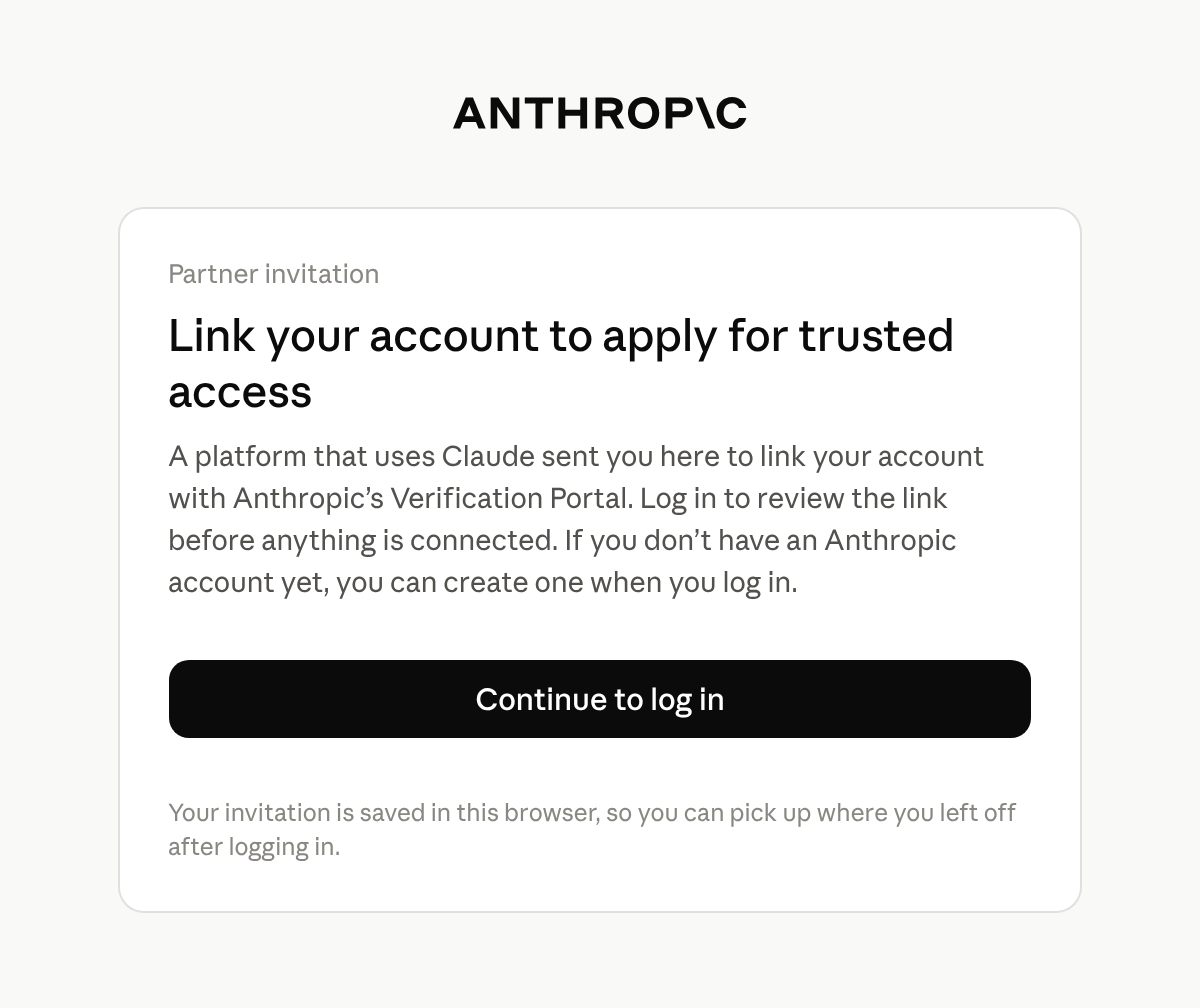
Before logging in, the end customer sees why they were sent to the portal. Link the profile
The portal shows a card titled Link your partner profile. It names your platform, the profile's ID, the end customer's organization, and when the invitation expires. The end customer selects Link profile to accept or Skip for now to continue to the portal without linking.
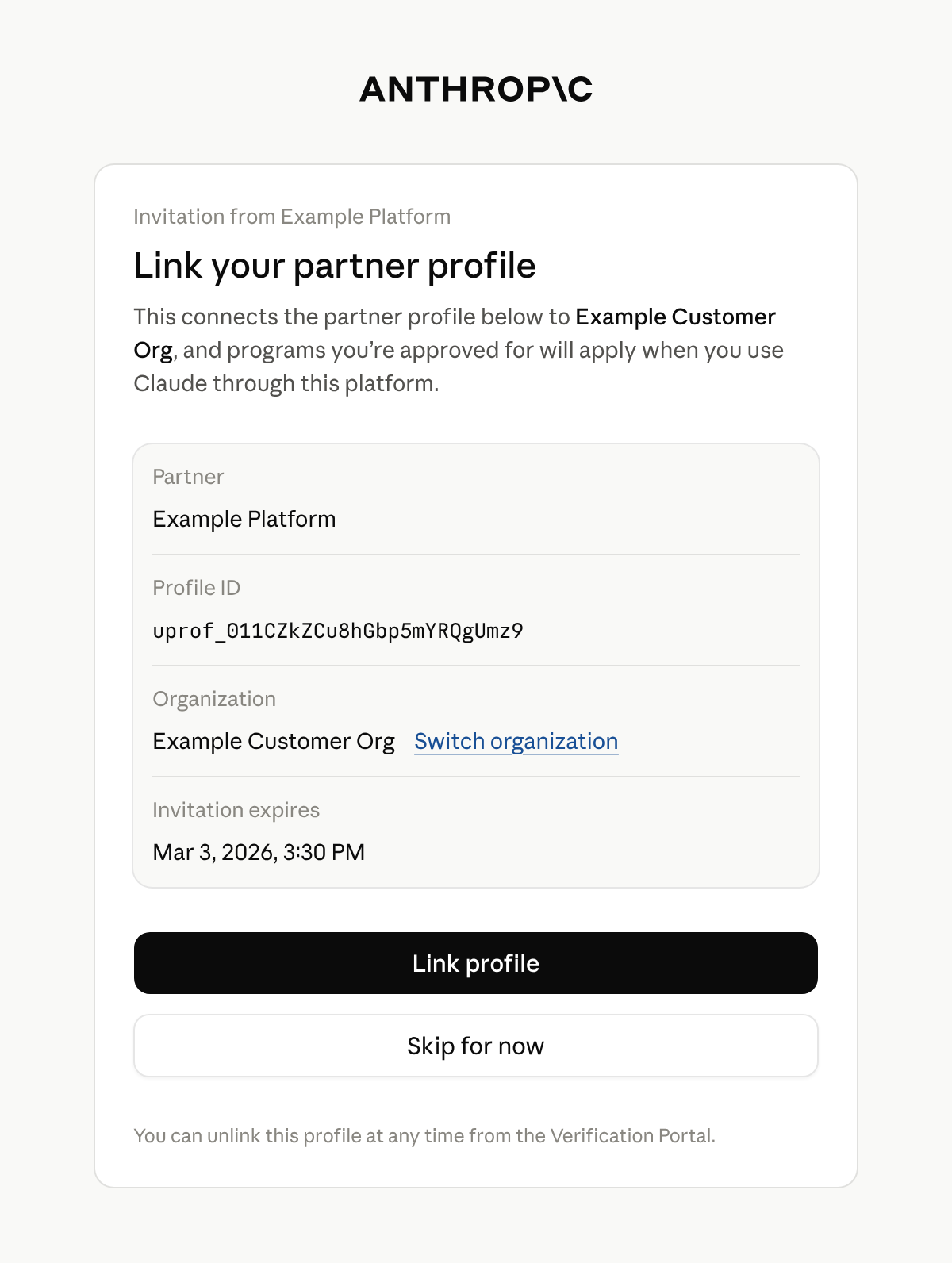
The end customer confirms which organization the profile links to. Only an admin or owner of the organization can link a profile. Anyone else sees Admin access needed and can't link the profile. They can switch to an organization where they are an admin or owner. Otherwise, tell the end customer that an admin or owner of their Anthropic organization has to open the link.
See the confirmation
The portal confirms with Profile linked. The end customer stays in the portal, where they can view the programs available to their organization and apply for them.
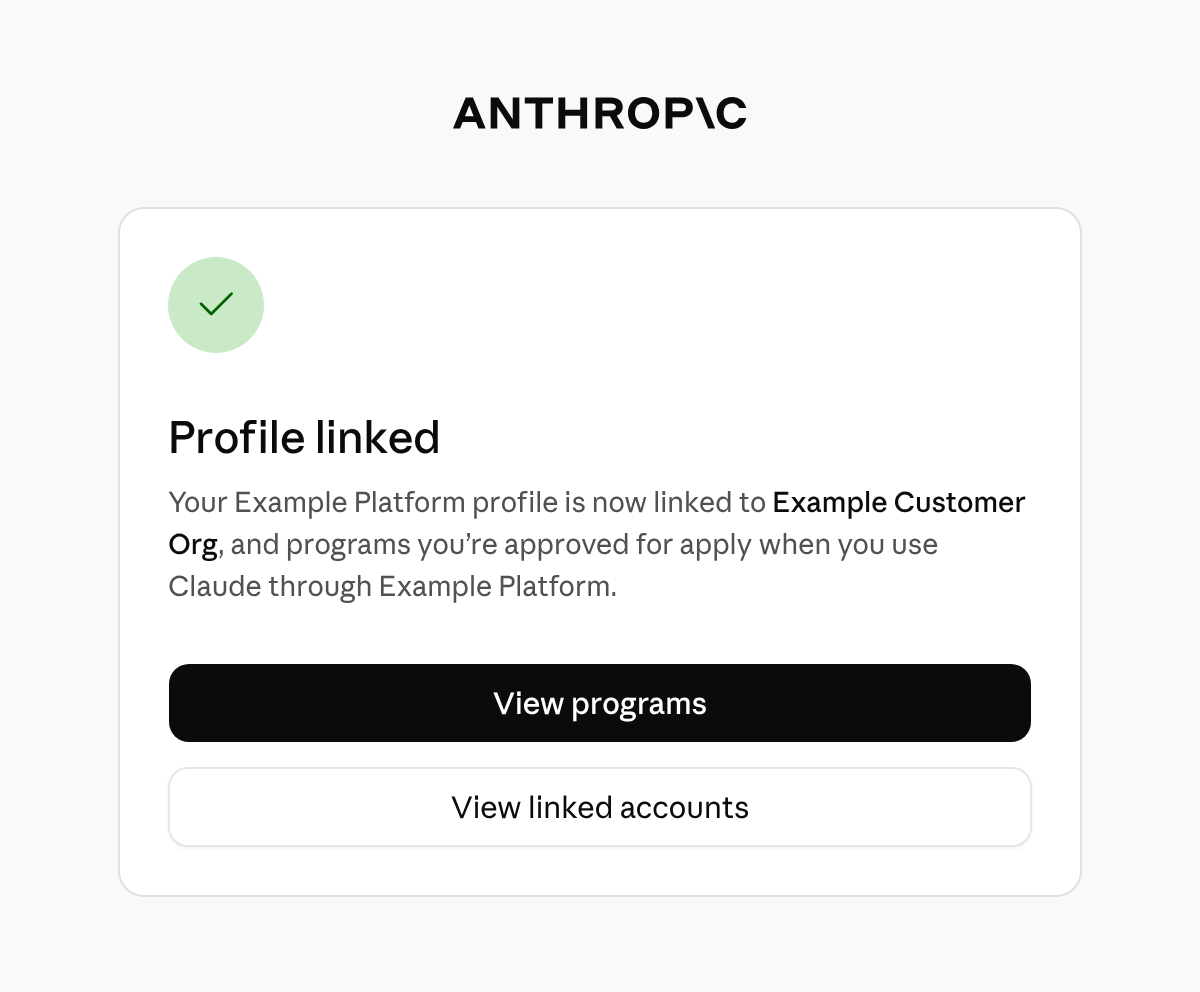
After linking, the end customer stays in the portal.
If the link has expired by the time an admin or owner opens it and logs in, the portal shows This invitation has expired and tells them to ask you for a new one.
A profile links to one organization. If it's already linked to a different one, the portal says This partner profile is already linked to a different organization and doesn't link it. An admin or owner of the organization it's linked to can unlink it under Linked accounts in the portal. After that, create a new link and send it to the end customer.
After the end customer links the profile
The portal doesn't send the end customer back to your product, and Anthropic doesn't notify you. Tell the end customer in your own interface to return when they have finished.
Linking doesn't approve anything by itself. It connects the profile to the end customer's organization, so that programs the organization is approved for apply to requests that carry the profile's ID. The profile has no field that says it is linked.
To see which programs apply to a profile, retrieve the profile and read programs. It has a key for each program, such as cyber and efs, and every profile has every key. Each key is one of the following:
null: Anthropic has no status to report for that program. Every key isnullif Anthropic hasn't enabled programs for your organization.- An object: Its
statusisactivewhen Anthropic has approved the end customer for the program, otherwisependingorrejected.
The end customer can see the linked profile under Linked accounts in the portal.
If your inference runs on Claude in Amazon Bedrock or Google Cloud, you have to link your own accounts too. Programs apply to requests from an AWS account or Google Cloud project only after you link it to the Anthropic organization that creates your profiles. See Attribute requests on Amazon Bedrock and Google Cloud.
Next steps
For each field that a retrieved profile contains, see the Retrieve a profile reference.
To create profiles, send their IDs on your requests, and keep them current, see User profiles for end-customer attribution.
Was this page helpful?