Set up CMEK on Claude Platform on AWS
Use an AWS KMS key as a customer-managed encryption key on Claude Platform on AWS.
This guide shows how to use an AWS KMS key as a customer-managed encryption key (CMEK) on Claude Platform on AWS. For Claude Platform or Claude Enterprise, follow Configure AWS KMS for CMEK instead.
Prerequisites
-
The AWS account that hosts your Claude Platform on AWS organization, with permissions to create KMS keys and set key policies (
kms:CreateKeyandkms:PutKeyPolicy). -
To create the key from the command line, the AWS CLI installed and authenticated.
-
The Admin role in the Claude Console for Claude Platform on AWS. See Using the Claude Console.
-
These permissions for the IAM principal you sign in to the Claude Console with:
- Sign in:
aws-external-anthropic:AssumeConsole - Register a key:
aws-external-anthropic:RegisterKey - View registered keys:
aws-external-anthropic:ListKeysandaws-external-anthropic:GetKey - Attach a key:
aws-external-anthropic:UpdateWorkspaceoraws-external-anthropic:CreateWorkspace, pluskms:DescribeKey,kms:Encrypt, andkms:Decrypton the key - Pick the key from a list (optional):
kms:ListKeysandkms:DescribeKey
aws-external-anthropic:RegisterKey,aws-external-anthropic:ListKeys,aws-external-anthropic:GetKey, andaws-external-anthropic:CreateWorkspaceare account-scoped. Grant them onResource: "*". See IAM actions. - Sign in:
AWS service principal for Anthropic
The key policy in this guide gives the following AWS service principal access to your key:
aws-external-anthropic.amazonaws.comEncryption key setup
Prepare the key policy
Copy this policy into a text editor:
{
  "Version": "2012-10-17",
  "Statement": [
    {
      "Sid": "AccountRootAdmin",
      "Effect": "Allow",
      "Principal": {
        "AWS": "arn:aws:iam::<AWS_ACCOUNT_ID>:root"
      },
      "Action": "kms:*",
      "Resource": "*"
    },
    {
      "Sid": "AllowClaudePlatformOnAWSCrypto",
      "Effect": "Allow",
      "Principal": {
        "Service": "aws-external-anthropic.amazonaws.com"
      },
      "Action": ["kms:Encrypt", "kms:Decrypt", "kms:GenerateDataKey"],
      "Resource": "*",
      "Condition": {
        "StringEquals": {
          "kms:EncryptionContext:anthropic:compartment_uuid": ["<COMPARTMENT_UUID>"]
        }
      }
    },
    {
      "Sid": "AllowClaudePlatformOnAWSDescribe",
      "Effect": "Allow",
      "Principal": {
        "Service": "aws-external-anthropic.amazonaws.com"
      },
      "Action": "kms:DescribeKey",
      "Resource": "*"
    }
  ]
}
The EncryptionContext condition is optional. It limits the key to the workspaces you list. To remove it, delete the Condition block from the AllowClaudePlatformOnAWSCrypto statement.
If you keep the condition, add each workspace's compartment ID before you attach the key to it. For a new workspace:
- Create the workspace without the key.
- Add its compartment ID to the policy.
- Attach the key.
If you add the condition later, list the compartment ID of every workspace the key is already attached to.
To limit the key policy further, see the optional aws:SourceArn condition.
Replace the placeholders:
<AWS_ACCOUNT_ID>: your AWS account ID. To print it with the AWS CLI, runaws sts get-caller-identity --query Account --output text.<COMPARTMENT_UUID>: the compartment ID of the workspace you attach the key to
Create the key
Create the key in the AWS account that hosts your Claude Platform on AWS organization, in the same region as the workspace.
Open the Create key wizard
Open the AWS KMS console and switch to the region for the key. Go to Customer managed keys and click Create key.
Configure key
Make sure that these options are selected:
- Key type: Symmetric
- Key usage: Encrypt and decrypt
- Advanced options > Key material origin: KMS
- Advanced options > Regionality: Single-Region key
Click Next.
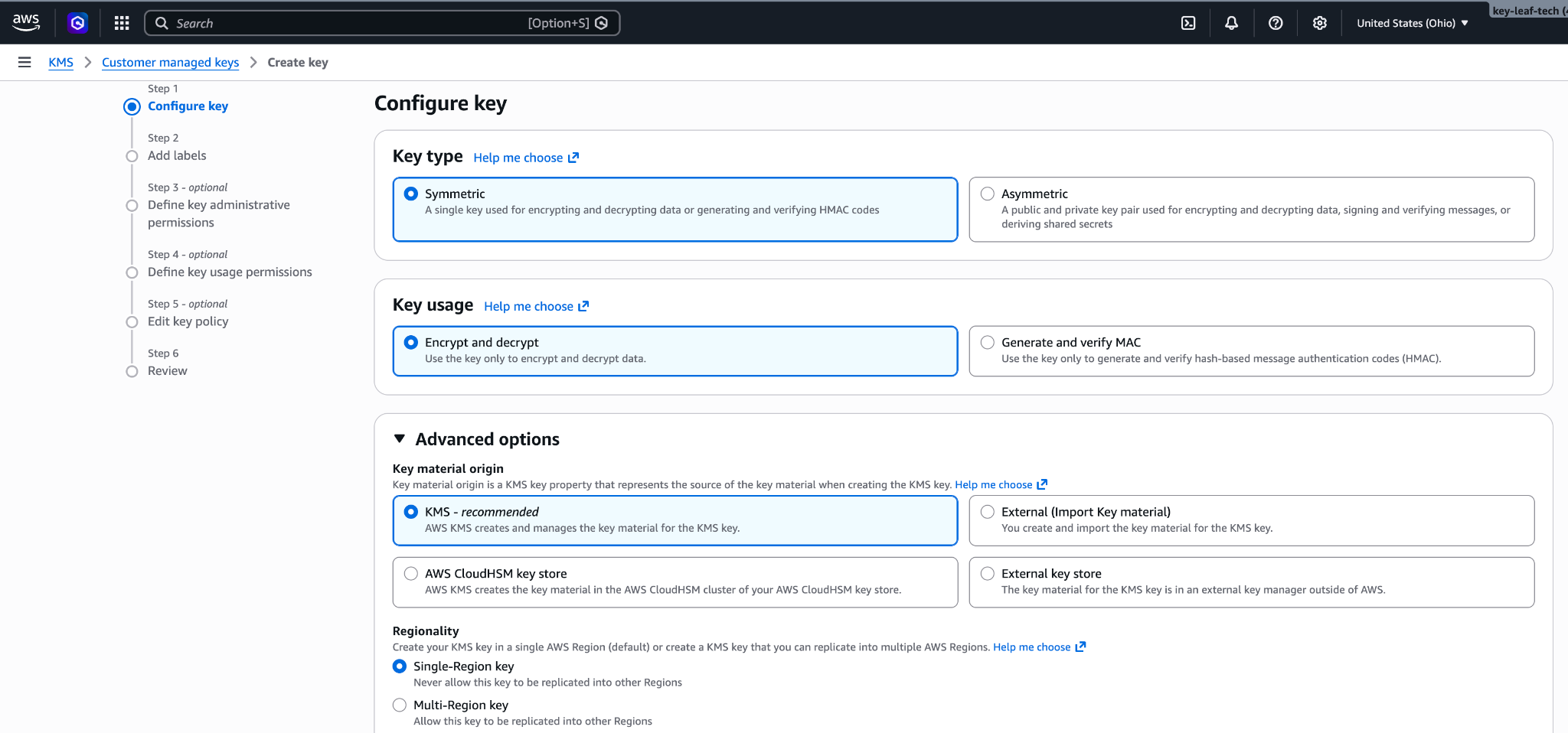
Symmetric, encrypt and decrypt, single-Region key. Add labels
Enter an Alias for the key, such as
anthropic-cmek. Click Next.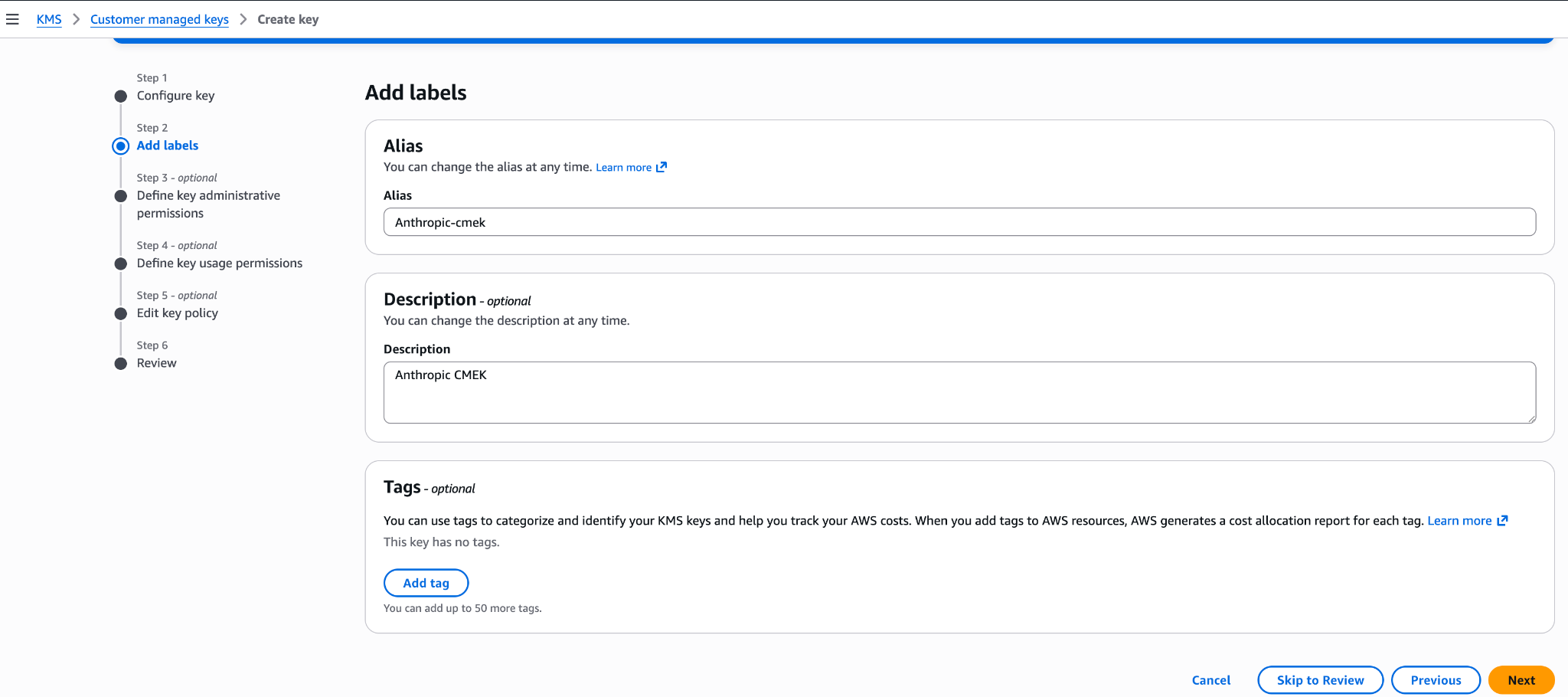
An alias for the key. Define key administrative permissions
Don't select any key administrators. Your key policy already gives your AWS account full admin control. Click Next.
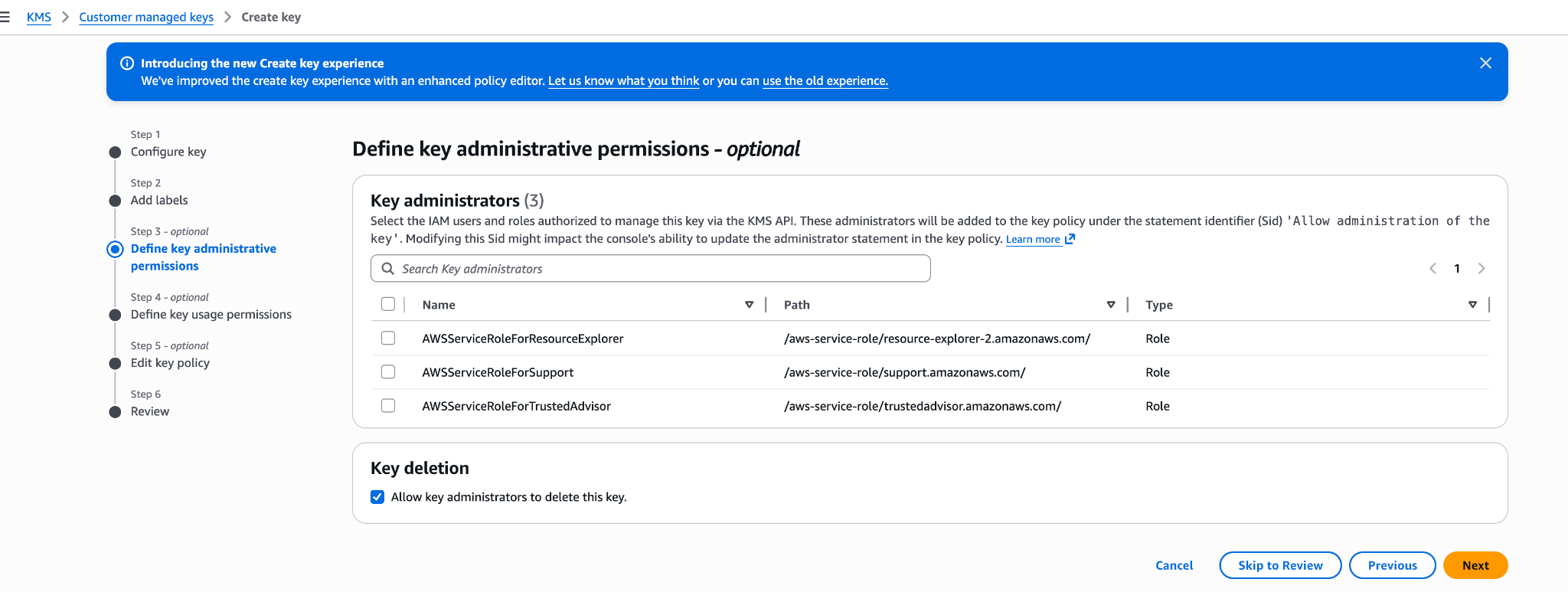
Leave key administrators empty. Define key usage permissions
Don't select any key users, and don't add anything under Other AWS accounts. Your key policy already grants the access that's needed. Click Next.
Edit key policy
Click Edit. Replace the whole policy with your key policy, then click Next.
Review
Click Finish.
Copy the key ARN
In Customer managed keys, open the new key and copy its ARN. You need the ARN to register the key.
To replace the key policy on a key that already exists:
- Open the key and click the Key policy tab.
- If you see Switch to policy view, click it.
- Click Edit.
- Replace the JSON with your key policy.
- Click Save changes.
Save your key policy as key-policy.json, then create the key. Replace <REGION> with the key's region.
aws kms create-key \
  --region <REGION> \
  --description "Anthropic CMEK" \
  --key-usage ENCRYPT_DECRYPT \
--policy file://key-policy.jsonCopy KeyMetadata.Arn from the output. You need it to register the key.
Register the key with Anthropic
Sign in to the Claude Console through AWS with the Admin role.
Open the encryption key settings
In the Claude Console, go to the Data retention page (
platform.claude.com/settings/privacy). If you don't see Encryption keys, select Organization from the dropdown menu at the top of the page.Add the key
Under Encryption keys, click Add key. Enter a Display name.
Enter the key ARN
Anthropic rejects alias ARNs and multi-Region keys.
In KMS key ARN, paste the key ARN. If a list of keys appears instead, select your key, or click Enter ARN manually and paste the ARN. Click Add.
Attach the key to a workspace
Attaching a key can't be undone. If you can, attach it to a new workspace before that workspace receives any requests. In a workspace that already receives requests, the key can take up to a day to take effect.
On the Data retention page, select the workspace from the dropdown menu at the top of the page. Under Encryption key, select the key and click Save.
Confirm the change
Select the checkbox to confirm that you have read the CMEK documentation, then click Confirm.
Attaching validates the key. If it fails with a KMS access error, see Troubleshoot validation.
You can also select a key when you create a workspace in the Claude Console, if your key policy has no EncryptionContext condition.
To register and attach keys with the API instead, see IAM actions. The API identifies a key by its KMS key ARN.
Troubleshoot validation
If validation fails, common causes are:
- Key policy mismatch: Make sure the key policy matches the one in Prepare the key policy. To check the key policy, run
aws kms get-key-policy --region <REGION> --key-id <KEY_ARN> --policy-name default. - Condition mismatch: Make sure any
EncryptionContextoraws:SourceArncondition includes this workspace. - Key state or location: Confirm that the key is enabled, single-Region, and in the same AWS account and region as the workspace.
- Missing permissions: The principal you are signed in as needs
kms:DescribeKey,kms:Encrypt, andkms:Decrypton the key. - Organization policies: Make sure no service control policy or resource control policy in your AWS organization blocks the service principal or your principal.
If attaching still fails, find the denied kms: event in CloudTrail in the key's account. It shows the calling principal and, for cryptographic calls, the encryption context. After you fix the cause, click Save again.
Terraform
To create the key with Terraform, use the aws_kms_key and aws_kms_alias resources from the aws provider.
Was this page helpful?