使用 Google Cloud KMS 设置 CMEK
创建 Google Cloud KMS 密钥,授予 Anthropic 对该密钥的访问权限,并在 Claude Platform 或 Claude Enterprise 中使用该密钥。
Claude Code
让 Claude Code 为您设置此功能
/claude-api 帮我使用 Google Cloud KMS 配置客户管理的加密密钥开始之前
在 Claude 中:
- 客户管理的加密密钥(CMEK)已为您的组织开启。
- 您已获得您的 Anthropic 组织 ID,即不带
org_前缀的 UUID。您可以从 Claude Console 中的 Organization 复制它,也可以从 claude.ai 上的 Organization settings > Organization and access 复制它。创建密钥的人需要此 ID。 - 您是 Claude Platform 上的 Organization Admin,或 Claude Enterprise 上的 Owner 或 Primary Owner。
- 在 Claude Platform 上,您拥有一个保留数据的工作区,最好是新的工作区,因为现有数据仍受 Anthropic 的密钥保护。
- 在 Claude Enterprise 上,您了解哪些功能会关闭或发生变化。
在 Google Cloud 中:
- 已启用 Cloud KMS API。
- 您可以创建密钥环和密钥,并在其上设置 IAM 策略(
roles/cloudkms.admin或同等角色)。 - 已开启 Cloud KMS 数据访问审计日志(Data Read 和 Data Write),以便 Cloud Logging 记录 Anthropic 对您的密钥的使用。这些日志默认处于关闭状态。
- 如果您的 Google Cloud 组织强制执行网域限制共享(
constraints/iam.allowedPolicyMemberDomains),它会阻止向 Anthropic 的服务账号授予权限。请添加项目级例外,或允许 Anthropic 的 Cloud Identity 客户 ID。请联系 Anthropic 获取该 ID。
在 Google Cloud 中:创建密钥
如果 Verify 或 Add 失败,请参阅 Google Cloud KMS 的修复方法。
以下步骤会使用小写形式的 Anthropic 组织 ID(<ORGANIZATION_UUID>)为密钥添加标签,并向 Anthropic 的服务账号授予访问权限:
anthropic-cmek-client-us@gcp-anthropic-cmek-clients.iam.gserviceaccount.com请仅使用此地址,切勿使用通过电子邮件或聊天发送的地址。
您可以使用任何 Cloud KMS 位置。为获得最低延迟,请使用 us-east5 或 us-central1。Anthropic 强烈建议使用 HSM 保护。
要使用您已有的密钥,请先添加组织标签。
创建或选择密钥环
在 Google Cloud 控制台中,前往 Key management 页面。打开一个密钥环,或在
us-east5等位置创建一个密钥环。配置密钥
点击 Create key 并输入名称。选择以下选项:
- Protection level: HSM
- Key material: Generated key
- Purpose: Symmetric encrypt/decrypt
- Algorithm: Google symmetric key
添加组织标签
点击 Additional settings,然后点击 Add label。输入组织标签:
- Key 1:
anthropic-org-<ORGANIZATION_UUID> - Value 1:
true
点击 Create。
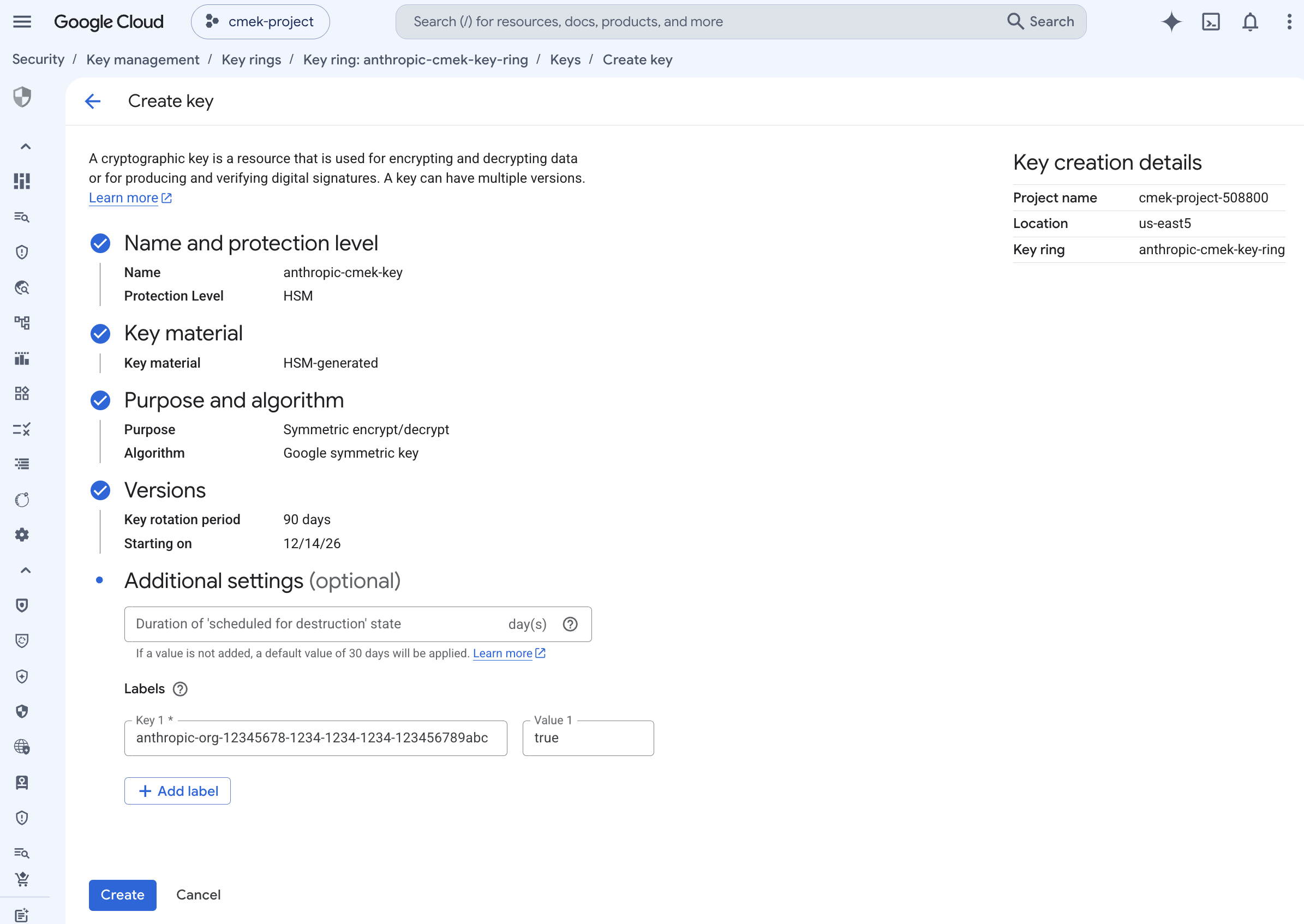
带有组织标签的 HSM 保护的对称加密/解密密钥。 - Key 1:
打开密钥的权限
在密钥环详情页面上,选中密钥旁边的复选框。打开 Permissions 面板并点击 Grant access。
向 Anthropic 的服务账号授予对该密钥的访问权限
检查 Resource 显示的是密钥,而不是密钥环或项目。输入以下值:
- New principals:
anthropic-cmek-client-us@gcp-anthropic-cmek-clients.iam.gserviceaccount.com - Role: Cloud KMS CryptoKey Encrypter/Decrypter
点击 Add another role 并选择 Cloud KMS Viewer。点击 Save。
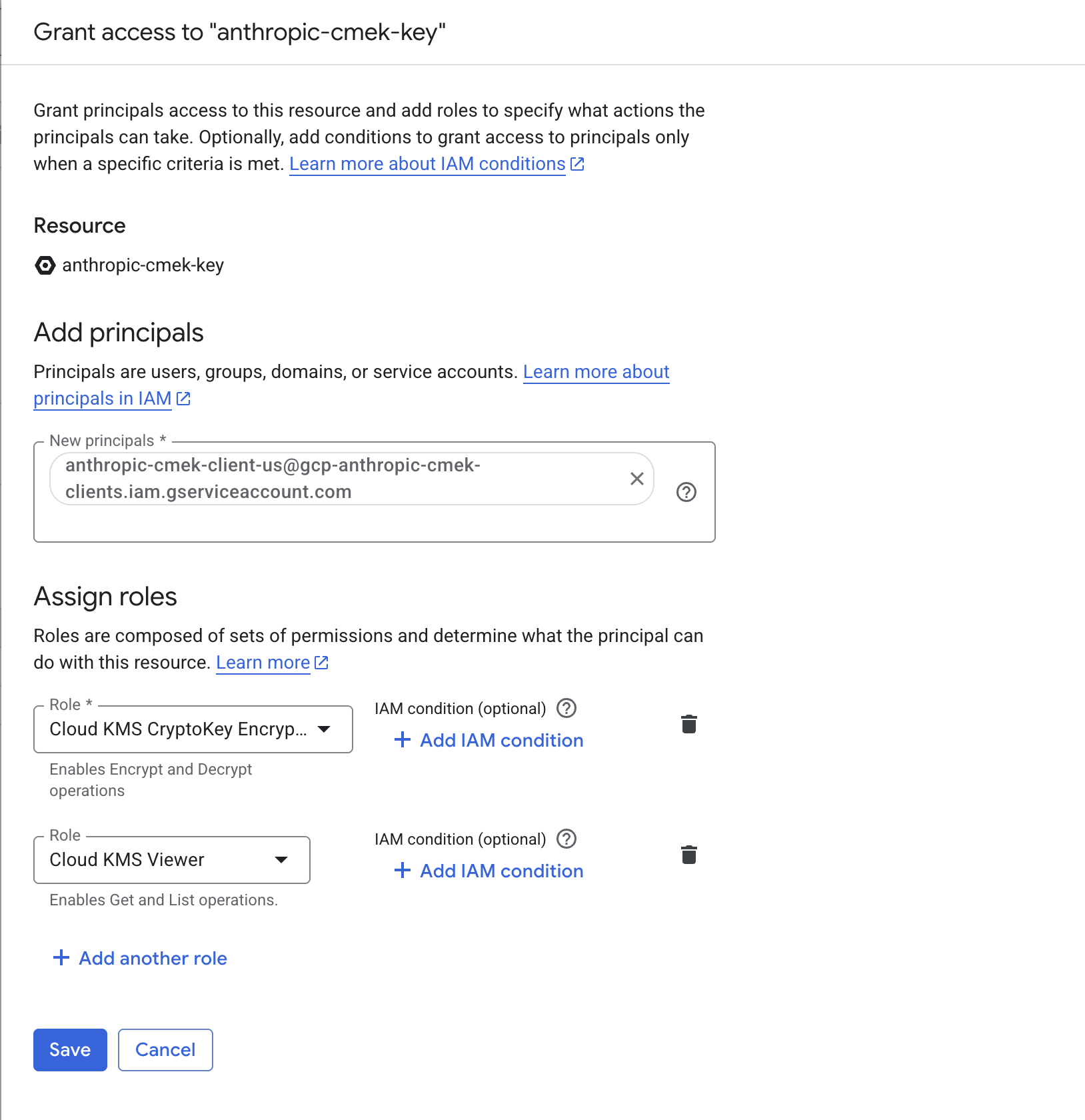
向 Anthropic 服务账号授予这两个角色,范围限定为该密钥。 - New principals:
复制完整的密钥资源名称
在密钥环详情页面上,打开密钥的 Actions 菜单并点击 Copy resource name。
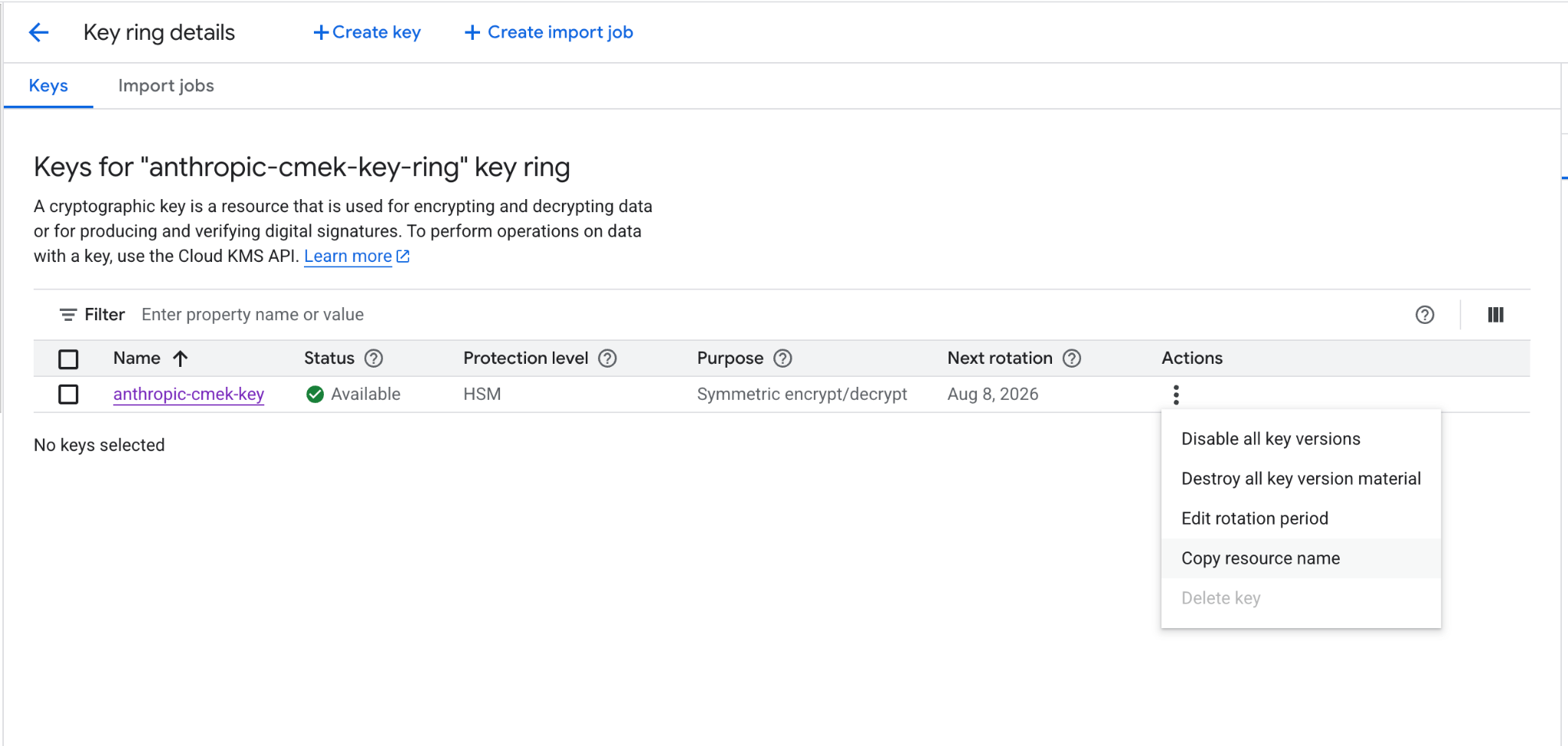
从操作菜单中复制密钥的完整资源名称。
在每个命令中,替换以下占位符:
<your-project-id>: 您的 Google Cloud 项目 ID<region>: 密钥的位置,例如us-east5<your-keyring-name>: 密钥环的名称<your-key-name>: 密钥的名称<ORGANIZATION_UUID>: 小写形式的 Anthropic 组织 ID
创建或选择密钥环
如果您已有可重复使用的密钥环,请跳过此步骤。
gcloud kms keyrings create <your-keyring-name> \ --project=<your-project-id> \ --location=<region>创建密钥
gcloud kms keys create <your-key-name> \ --project=<your-project-id> \ --location=<region> \ --keyring=<your-keyring-name> \ --purpose=encryption \ --protection-level=hsm \ --labels=anthropic-org-<ORGANIZATION_UUID>=true如需软件保护,请省略
--protection-level=hsm。向 Anthropic 的服务账号授予对该密钥的访问权限
运行以下两个命令:
gcloud kms keys add-iam-policy-binding <your-key-name> \ --project=<your-project-id> \ --location=<region> \ --keyring=<your-keyring-name> \ --member="serviceAccount:anthropic-cmek-client-us@gcp-anthropic-cmek-clients.iam.gserviceaccount.com" \ --role=roles/cloudkms.cryptoKeyEncrypterDecryptergcloud kms keys add-iam-policy-binding <your-key-name> \ --project=<your-project-id> \ --location=<region> \ --keyring=<your-keyring-name> \ --member="serviceAccount:anthropic-cmek-client-us@gcp-anthropic-cmek-clients.iam.gserviceaccount.com" \ --role=roles/cloudkms.viewer获取完整的密钥资源名称
gcloud kms keys describe <your-key-name> \
  --project=<your-project-id> \
  --location=<region> \
  --keyring=<your-keyring-name> \
  --format="value(name)"
在 Claude 中添加密钥的人员需要该密钥的完整资源名称,格式如下:
projects/<your-project-id>/locations/<region>/keyRings/<your-keyring-name>/cryptoKeys/<your-key-name>为您已有的密钥添加组织标签
除非密钥带有值为 true 的标签 anthropic-org-<ORGANIZATION_UUID>(其中使用小写形式的 Anthropic 组织 ID),否则验证会失败。要添加该标签,请运行:
gcloud kms keys update <your-key-name> \
  --project=<your-project-id> \
  --location=<region> \
  --keyring=<your-keyring-name> \
--update-labels=anthropic-org-<ORGANIZATION_UUID>=true其他值可在密钥的完整资源名称中找到,并且该命令会保留现有标签。然后跳至授予访问权限的步骤。
在 Claude 中:添加并附加密钥
要在 Claude Platform 上通过脚本完成这部分操作,请改为使用 Admin API。
打开加密密钥设置
在 Claude Console 中,打开 Data retention 页面上的 Encryption keys。如果该部分不存在,请从顶部的下拉菜单中选择 Organization。
添加密钥
在 Encryption keys 下,点击 Add key。输入 Display name,选择 Google Cloud KMS,然后点击 Continue。
输入密钥资源名称
检查您的密钥是否带有对话框中显示的 Organization label。将密钥的完整资源名称粘贴到 Key resource name 中,然后点击 Add。
验证密钥
在 Encryption keys 列表中,点击密钥旁边的 Verify。检查通过时会显示 Connected。如果显示的是 Connection failed,请参阅 CMEK 故障排除。
在 Claude Enterprise 上,CMEK 适用于整个组织,并且您只能添加一个密钥。
添加密钥会为每位用户关闭或更改某些功能。如需先试用 CMEK,请使用单独的组织。
打开加密密钥设置
前往 claude.ai > Organization settings > Data and privacy,找到 Encryption keys。
添加密钥
点击 Add key。输入 Display name 并选择 Google Cloud KMS。选中复选框以确认您已阅读 CMEK 文档,然后点击 Continue。
输入密钥资源名称
检查您的密钥是否带有对话框中显示的 Organization label。将密钥的完整资源名称粘贴到 Key resource name 中,然后点击 Add。
Was this page helpful?