Cookbook
Agent Patterns
Tools
View on GitHub

Build a data analyst agent with Claude Managed Agents

Build an analyst that turns a CSV into a narrative HTML report with interactive charts, using a sandboxed environment and file mounting.

Charmaine Lee
Charmaine Lee
@charmaine
Jess Yan
Jess Yan
@jyan-anthropic
Published on April 8, 2026
Was this page helpful?

Build a data analyst agent with Claude Managed Agents

Introduction

Every team has someone who gets handed a CSV and asked "what's interesting in here?" In this cookbook you'll build an agent that answers for them: upload a CSV, get back a narrative HTML report with interactive charts.

You'll run it on Claude Managed Agents, Anthropic's hosted runtime for stateful, tool-using agents, built on four core concepts:

  • Agent: the model, system prompt, tools, MCP servers, and skills
  • Environment: a configured container template (packages, network access)
  • Session: a running agent instance within an environment, performing a specific task and generating outputs
  • Events: messages exchanged between your application and the agent (user turns, tool results, status updates)

An agent plus an environment gives you a session. You attach your data to it as resources, then drive it by sending events and reading back the stream.

Anthropic handles the sandbox, tool execution, and context management for you. If you need full control over the agent loop and deployment, try the Claude Agent SDK instead.

What you'll learn

By the end of this cookbook you'll be able to:

  • Set up a reusable environment and agent for data analysis
  • Hand the agent a dataset to work with
  • Watch the agent's progress as it runs
  • Download the report and any other files it produced

Prerequisites

  • Python 3.11+
  • An Anthropic API key from the Console, set as ANTHROPIC_API_KEY

Install dependencies:

python
%%capture
%pip install -q "anthropic>=0.91.0" python-dotenv
python
from pathlib import Path
 
from anthropic import Anthropic
from dotenv import load_dotenv, set_key
 
load_dotenv()
client = Anthropic()
MODEL = "claude-sonnet-4-6"

1. Create an environment

An environment is a reusable container spec. Declaring pandas and plotly here means every session starts with them preinstalled, so the agent can begin analyzing immediately instead of running pip install first.

Networking is unrestricted here so the agent can load plotly from its CDN – but that lets it reach anywhere on the internet, so for production use a host allowlist instead.

python
env = client.beta.environments.create(
    name="cookbook-data-analyst-env",
    config={
        "type": "cloud",
        "networking": {"type": "unrestricted"},
        "packages": {
            "type": "packages",
            "pip": ["pandas", "plotly"],
        },
    },
)

2. Create the agent

An agent pairs a model with a system prompt and a set of tools. Most of the output quality comes from the system prompt; this one pushes for narrative structure, findings backed by specific figures, and the right pattern for embedding multiple plotly charts in one HTML file.

agent_toolset_20260401 provides eight tools: bash, read, write, edit, glob, grep, web_fetch, and web_search. Here they all run under always_allow, with the two web tools disabled because this analysis is offline.

python
ANALYST_SYSTEM_PROMPT = """\
You are a senior data analyst producing a publication-quality report.
 
## Style
- Professional and precise. Let the data speak with concrete numbers.
- Short paragraphs (2-3 sentences) between charts.
- Lead with the most actionable finding.
 
## Execution
- Write .py scripts and run them with `python3 script.py`.
- Sample large tables (`nrows=` / `.sample()`) instead of loading everything.
- Sanity-check key metrics before building narrative around them.
 
## Charts
- Build each chart as its own `go.Figure()`, embed with
  `fig.to_html(include_plotlyjs=False, full_html=False)`, and load plotly
  from the CDN once in <head>.
- Always set `marker_color` and `template='simple_white'`.
 
## Output
Write a single self-contained `report.html` to /mnt/session/outputs/
with inline CSS, 3+ embedded plotly charts, and a closing section of
actionable recommendations. Confirm "Saved: report.html" when done.
"""
 
agent = client.beta.agents.create(
    name="cookbook-data-analyst",
    model=MODEL,
    system=ANALYST_SYSTEM_PROMPT,
    tools=[
        {
            "type": "agent_toolset_20260401",
            # default_config applies to every tool in the set;
            # entries in configs override specific tools.
            "default_config": {
                "enabled": True,
                "permission_policy": {"type": "always_allow"},
            },
            "configs": [
                {"name": "web_search", "enabled": False},
                {"name": "web_fetch", "enabled": False},
            ],
        }
    ],
)

3. Upload the dataset

The included sample CSV has 50 rows, so the analysis completes in a few minutes. Swap in any CSV (or a zip of CSVs) here; the rest of the flow is identical.

python
DATA_PATH = Path("example_data/data_analyst_agent/sales_data.csv")
 
with DATA_PATH.open("rb") as f:
    dataset = client.beta.files.upload(file=(DATA_PATH.name, f, "text/csv"))
 
print(f"Uploaded {DATA_PATH.name} ({dataset.size_bytes} bytes) as {dataset.id}")
Uploaded sales_data.csv (2833 bytes) as file_011CZqKKomgL45BLo2J8K5X9

4. Create a session and send the task

A session binds the agent to the environment and any mounted files. Passing {"type": "agent", "id": ..., "version": ...} reuses the versioned agent you created above. resources mounts the uploaded file at the given absolute path inside the container.

After creating the session, send a user.message event with the task. The agent will start working immediately.

python
MOUNT_PATH = f"/mnt/session/uploads/{DATA_PATH.name}"
 
session = client.beta.sessions.create(
    environment_id=env.id,
    agent={"type": "agent", "id": agent.id, "version": agent.version},
    resources=[{"type": "file", "file_id": dataset.id, "mount_path": MOUNT_PATH}],
    title="Sales analysis",
)
 
ANALYSIS_PROMPT = f"""\
Analyze the e-commerce orders in {MOUNT_PATH}.
 
Columns: order_id, customer_id, product, category, price, quantity,
order_date, region.
 
Focus on revenue by category and region, repeat-customer behavior, and
one surprising pattern. Produce report.html per your system instructions.
"""
 
client.beta.sessions.events.send(
    session.id,
    events=[
        {"type": "user.message", "content": [{"type": "text", "text": ANALYSIS_PROMPT}]},
    ],
)
print(f"Session {session.id} running")
Session sesn_011CZqKKqyPRph9J5khKLn6u running

5. Stream the run

Open the session in the Console under Sessions to watch every event, tool call, and token count live:
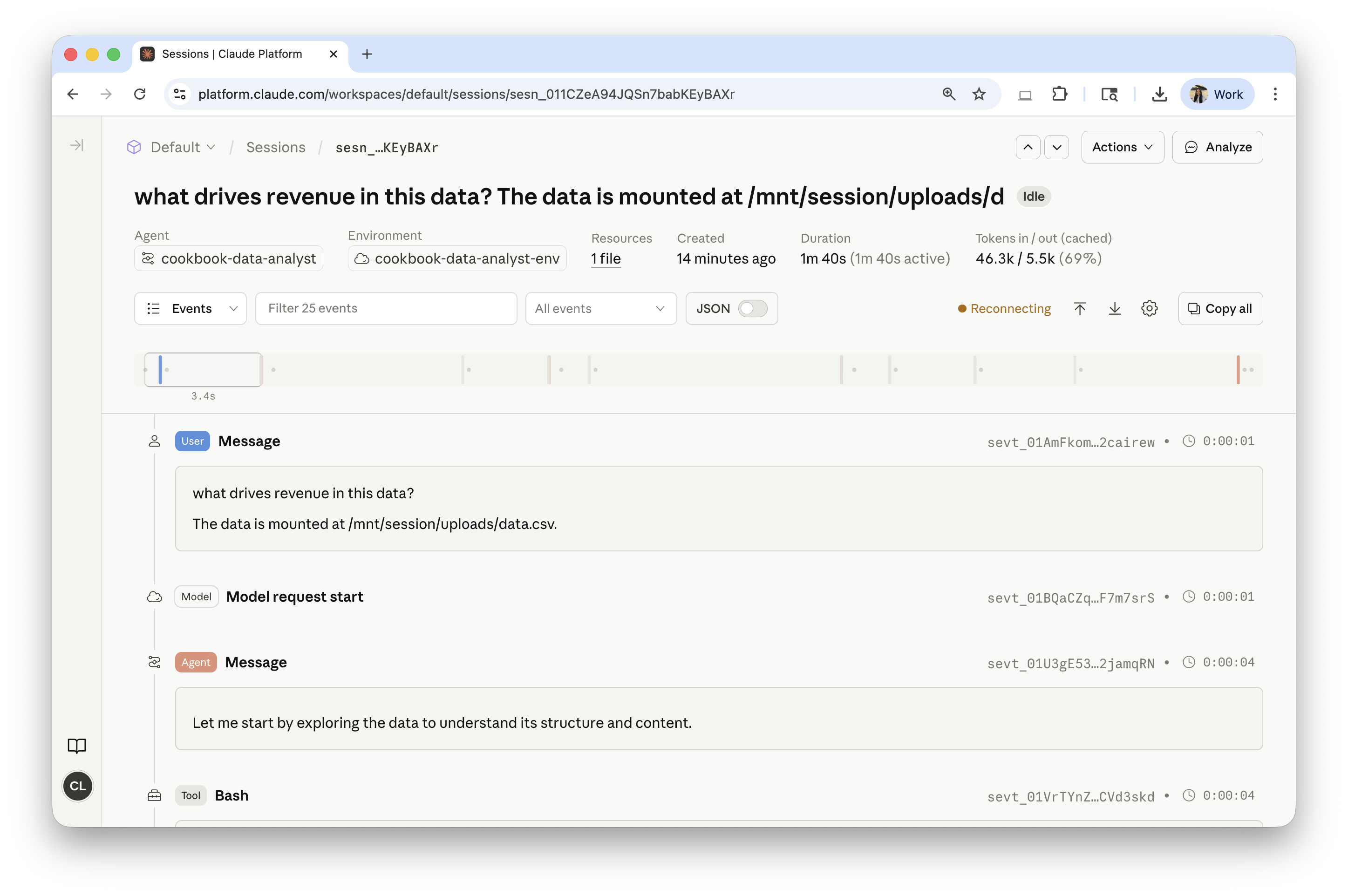
Session trace in the Console

The helper below tails the same event stream, printing agent.message text and agent.tool_use calls as they arrive, and returns on session.status_idle.

python
def wait_for_idle(session_id: str) -> None:
    for ev in client.beta.sessions.events.stream(session_id):
        t = ev.type
        if t == "agent.message":
            for block in ev.content:
                if block.type == "text":
                    text = block.text
                    print(text[:300] + ("..." if len(text) > 300 else ""))
        elif t in ("agent.tool_use", "agent.mcp_tool_use"):
            print(f"  [{ev.name}]")
        elif t == "session.status_idle":
            return
        elif t == "session.status_terminated":
            raise RuntimeError(
                "Session terminated before going idle. "
                f"Trace: https://platform.claude.com/sessions/{session_id}"
            )
 
 
wait_for_idle(session.id)

6. Retrieve the report

Anything the agent writes to /mnt/session/outputs/ is persisted and surfaced via the Files API with scope_id=<session_id>. Files written elsewhere in the container are not persisted.

The Files API is a separate feature in beta, so to use scope_id here you also need to pass the Managed Agents beta header.

python
outputs = client.beta.files.list(scope_id=session.id, betas=["managed-agents-2026-04-01"])
for f in outputs.data:
    print(f.filename, f.size_bytes)
 
# The list also includes the mounted input CSV; pick out the report.
report = next((f for f in outputs.data if f.filename == "report.html"), None)
if report is None:
    raise RuntimeError(f"report.html not found. Files: {[f.filename for f in outputs.data]}")
content = client.beta.files.download(report.id)
Path("report.html").write_bytes(content.read())
print("Downloaded report.html")
report.html 53728
sales_data.csv 2833
Downloaded report.html

7. Clean up and next steps

You create the agent and environment once and reuse them across runs; you create a new session for each conversation. Now that you have the report, archive this session to release its container. The lines below save the agent and environment IDs to .env so slack_data_bot.ipynb can start new sessions with them.

Warning: make sure .env is listed in .gitignore before running the next cell – never commit it.

python
client.beta.sessions.archive(session.id)
 
set_key(".env", "ANALYST_ENV_ID", env.id)
set_key(".env", "ANALYST_AGENT_ID", agent.id)
set_key(".env", "ANALYST_AGENT_VERSION", str(agent.version))
print("Saved ANALYST_ENV_ID, ANALYST_AGENT_ID, ANALYST_AGENT_VERSION to .env")
Saved ANALYST_ENV_ID, ANALYST_AGENT_ID, ANALYST_AGENT_VERSION to .env

You've built and run a data analyst agent end to end: a reusable environment and agent, a session that mounted your CSV, a live event stream, and a downloaded HTML report.

From here:

  • Open the downloaded report.html to see the narrative and charts.
  • Open the session in the Console to inspect token usage and the full event log.
  • Continue to slack_data_bot.ipynb to drive this agent from Slack.
Was this page helpful?